

Visual Studio Build Tools Offline Installer
A complete guide to downloading and creating a local layout of VS Build Tools for environments without internet access.
Introduction
Creating an offline installer for Visual Studio Build Tools is essential for development environments with restricted internet access. By creating a Local Layout, you download all necessary components once and can then install them on any machine without further downloads.
Step 1: Download the Bootstrapper
To start, you need the lightweight bootstrapper from Microsoft. This file is only about 1MB and acts as the “downloader” for the rest of the tools.
- Go to the Visual Studio Downloads page.
- Scroll down to All Downloads > Tools for Visual Studio.
- Download Build Tools for Visual Studio 2022 (the file is usually named
vs_buildtools.exe).
Step 2: Prepare the Layout Folder
Open your Command Prompt or PowerShell as an Administrator.
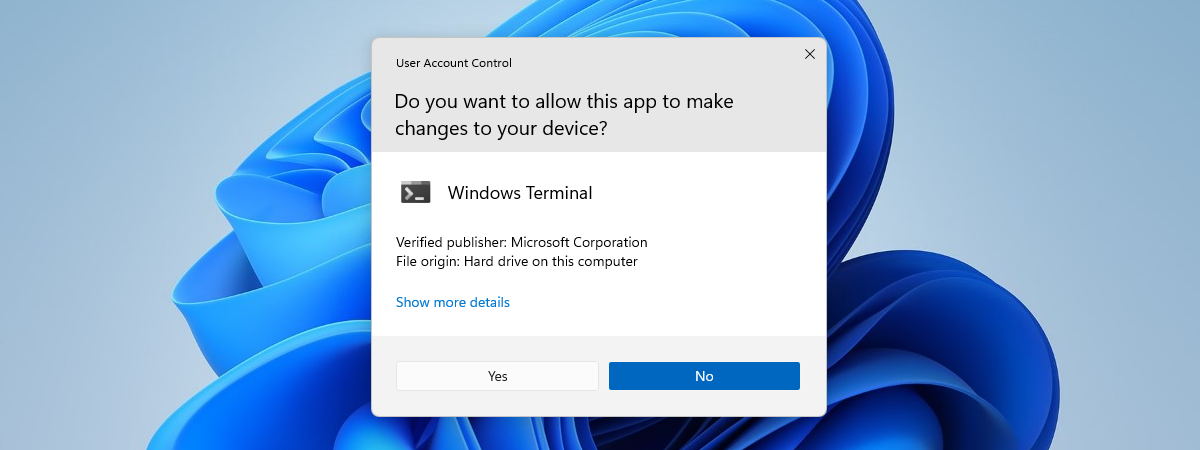
Create a directory where the files will be saved. In this example, we will use C:\vs_setup. You can create it via terminal using:
mkdir C:\vs_setupStep 3: Run the Layout Command
Use the following command to download the core C++ Build Tools. This is the most common setup for DIY developers and engineers.
vs_buildtools.exe --layout C:\vs_setup --add Microsoft.VisualStudio.Workload.VCTools --lang en-USStep 4: Adding Specific SDKs (Windows 10/11)
If you are developing for Windows 10 or 11, you will likely need the specific Windows SDKs. You can add them to your layout by extending the command with the --includeRecommended flag:
vs_buildtools.exe --layout C:\vs_setup --add Microsoft.VisualStudio.Workload.VCTools --add Microsoft.VisualStudio.Component.Windows11SDK.22000 --includeRecommended --lang en-US